When you sign up for our services you are automatically added to our portal, and you’ll receive an email with your login information. You can use the client portal to view and update details about your contact options, location, yard, dogs, schedule, billing, and notification preferences. Additionally, you can edit your payment method on file or request service changes directly through the portal.
The client portal url is https://client.sweepandgo.com
My Profile
You can update your personal information in this section.
Contact Info
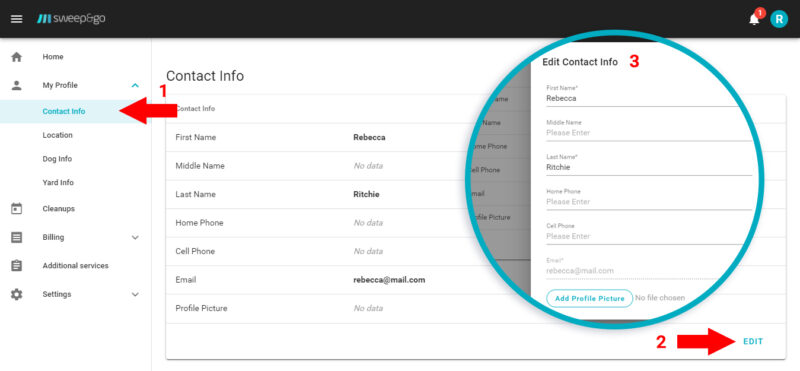
You can update your first and last name, home and cell phone numbers, add additional contacts, or upload a profile picture on the Contact Info tab. It’s important to include your cell phone number to ensure you receive cleanup notifications via call or text.
Location
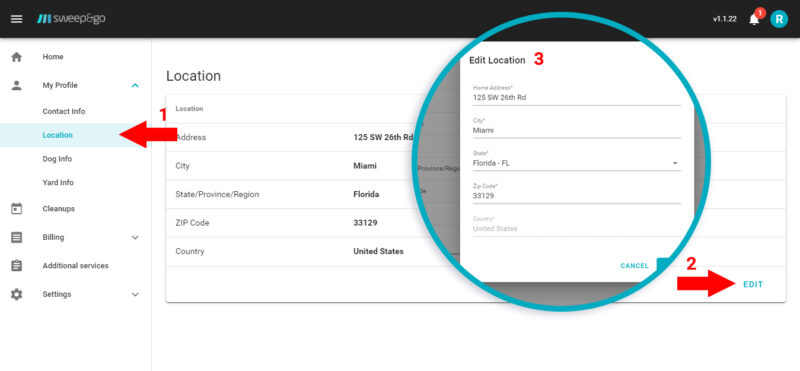
You can update your service address through the Location tab. When you request an address change, it will be sent to our office for review and approval.
Dog Info
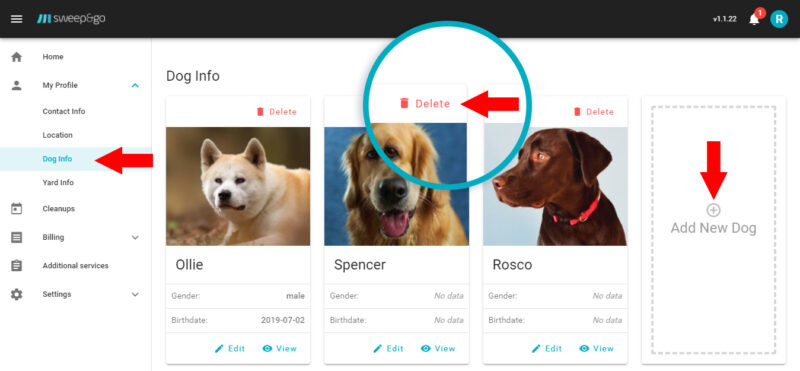
You can add a new dog, remove a dog, or update existing dog details on the Dog Info tab. It’s crucial to indicate whether it’s safe for our tech to be in the yard with your dog.
Yard Info
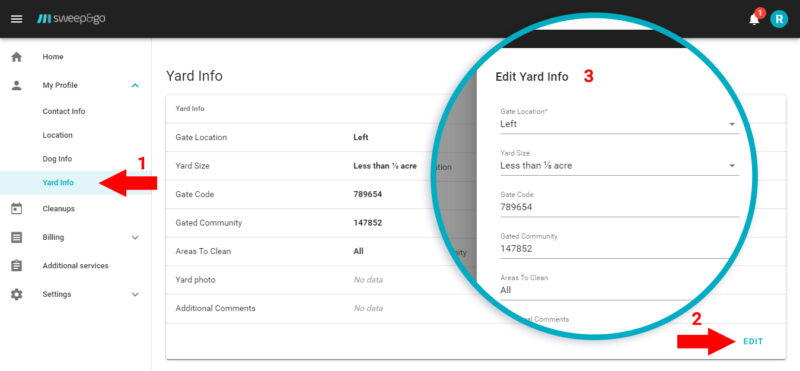
In the yard info section, you can update your gate location, or gate code, or other information if applicable.
Clean Ups
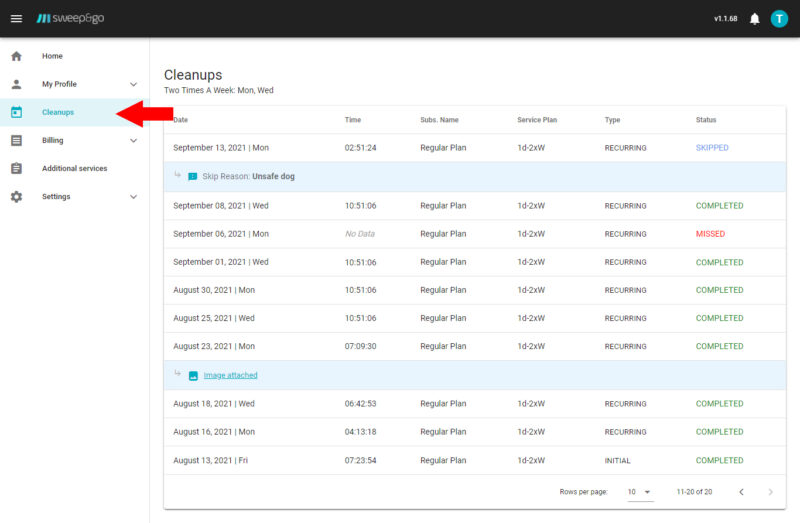
The Cleanups section shows information about completed, skipped, or missed cleanups, including the date and time of each visit. You can also use this section to remind yourself of your scheduled service days.
Billing
In the Billing section, you can view your invoices, payments, and account balance. You can also update your subscription or add a payment method on file.
Subscriptions
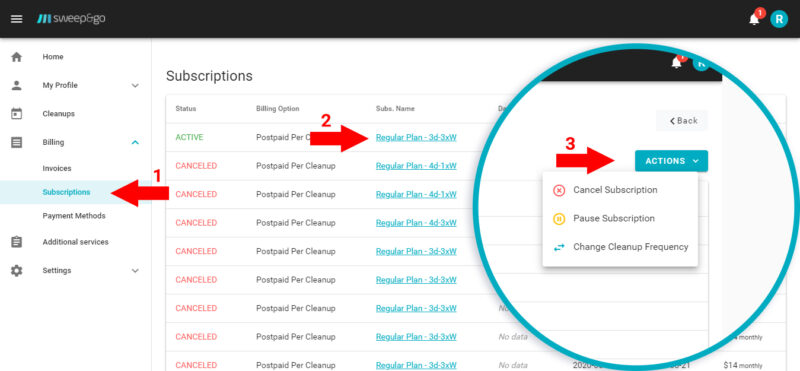
In the Subscriptions section, you can review or update your subscription. If you cancel, you’ll need to provide a cancellation date and reason. If you pause the service, you’ll need to enter the pause start and end dates; service can be paused for up to 90 days. After saving any changes, a request will be sent to our office for approval. Once approved, your subscription will be updated automatically.
Payment Methods
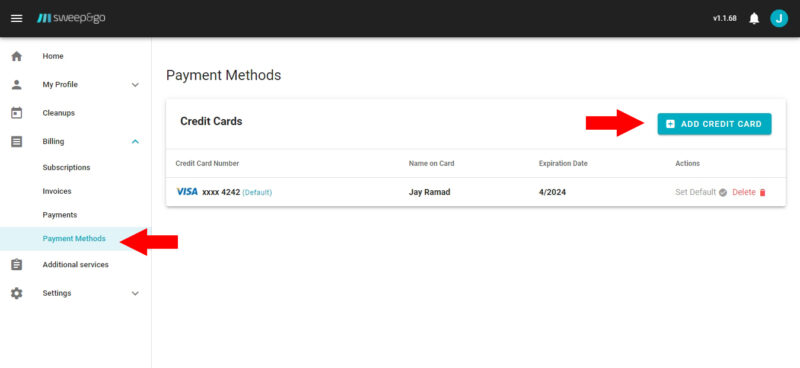
In the Payment Methods section, you can add multiple credit cards, but you must set one as the default payment method. When you add a credit card, an email notification is sent to our office. Note that you cannot remove the last credit card on file if there is an active subscription, open balance, or dispatched job. To replace a card, add a new one first, then remove the old card.
A test charge will be applied to verify the new card; this is a temporary authorization and not an extra charge. If you have a positive account balance when adding a payment method, the app will automatically process payment for any open invoices at midnight.
Additional Services
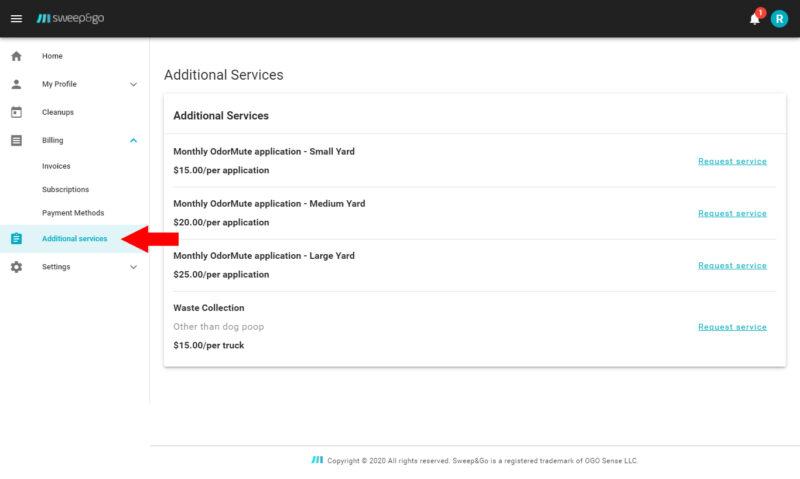
You can request to add additional services or cancel them through Additional Services tab.
 POOPAW SOLUTIONS